On this page
Done once, by hand, in a browser. Takes about two minutes.
You are telling Infinn two things: "programs are allowed to act for my account", and "only from this one place on the internet".
In return Infinn gives you two long strings - an app key and a secret key - which your program later uses to prove it is really you. Think of the app key as a username for your program and the secret key as its password.
You generate your own API key and secret in the INFINN trading platform (trade.infinn.in, person icon). No request to support is needed. Static IP whitelisting is mandatory and already live: calls from any other IP are rejected.
Step 1 - Find your public IP address
Open api.ipify.org from the machine your code will run on. It answers with the bare IPv4 address and nothing else.
Not your laptop, if the code will run on a server. The address Infinn checks is the one requests actually arrive from, so register the address of whatever will be calling.
If that address can change - most home broadband and all mobile connections - you will be back here every time it does. Why this matters so much
Step 2 - Open the account menu
Log into trade.infinn.in. Look at the far top-right of the terminal: three icons sit there, an envelope, a bell and a person in a circle. The person is the one you want.
Nothing on screen says the word. The account menu is that person icon and nothing else - no caption, no arrow, no text. If you are scanning the main navigation for a settings link you will not find one, because this is not in the main navigation.
Click it and a menu drops down with ten entries. The first is your own user ID, which is not a link. Generate Key is the eighth, between IPO and Contact us, and carries a key icon.
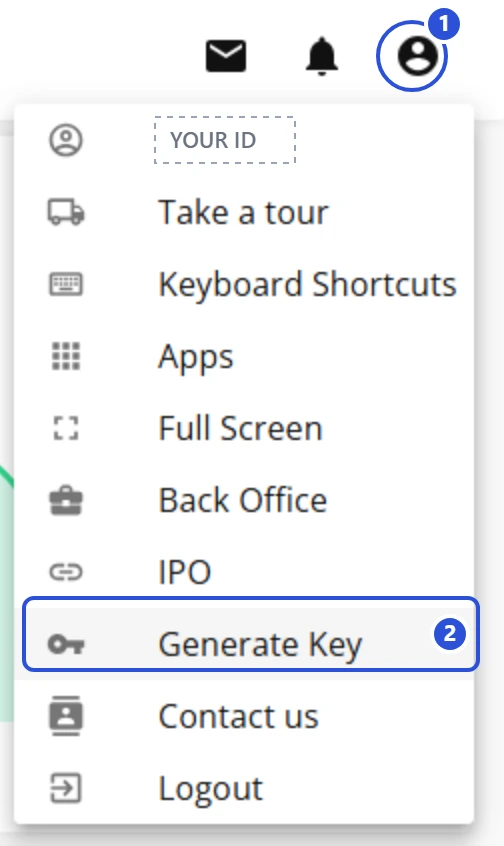
Most of these entries have nothing to do with the API - Take a tour, Full Screen and IPO are ordinary trading features. You want exactly one of them, and you will only ever need it twice: once now, and once more if you lose the secret key or your IP address changes.
Step 3 - Fill in the API Key panel
Generate Key opens a dialog titled API Key. It has seven things in it: three values issued to you, three fields you fill in, one checkbox, and the button that saves the lot.
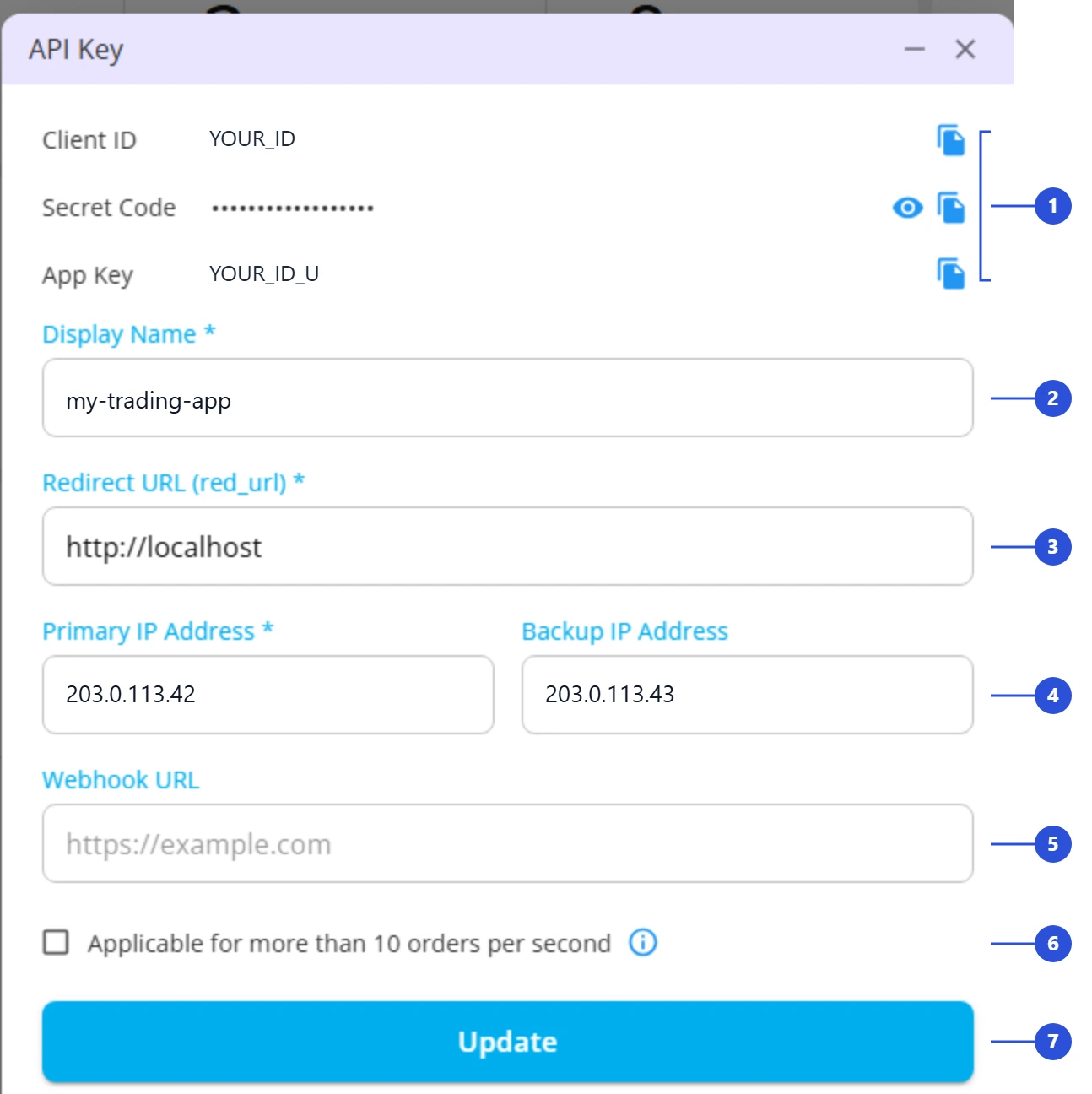
| # | Field | What to put in it | |
|---|---|---|---|
| 1 | Client ID, Secret Code, App Key | read-only | Nothing - these are issued to you. Copy all three with the icons on the right. Secret Code is masked until you press the eye. |
| 2 | Display Name | required | A name for your application. It is a label; no part of the API takes it as a parameter. |
| 3 | Redirect URL red_url | required | Where the login page sends the browser back to, with ?code= on the end. http://localhost is fine while you are developing. |
| 4 | Primary IP Address / Backup IP Address | required / optional | The public IPv4 address requests will arrive from. The backup field lets you register a second one. |
| 5 | Webhook URL | optional | An HTTPS endpoint, placeholder https://example.com. Documentation information not available - the API specification describes no webhook delivery, payload or event list. |
| 6 | Applicable for more than 10 orders per second | optional | A checkbox, unticked by default. Leave it unticked if you send 10 orders per second or fewer. Tick it only if you need more than 10 orders per second; then a Select Exchanges list (MCX, NSE, NFO, BSE, BFO) and one Algo ID for <EXCHANGE> field per selected exchange appear, and you must fill in the exchange-approved algo IDs before Update completes. Details and drawing below. |
| 7 | Update | Saves the panel. Nothing you typed takes effect until you press it. |
If your client ID is IN001, the panel will show an app key of IN001_U. The suffix is part of the app key - it is not something you add yourself, and not something to strip off. Copy the whole value.
It is the api_key in the login URL and the first of the three strings in the checksum. Both break silently if the _U is missing.
What to actually do
- Copy all three values at the topClient ID, Secret Code and App Key, using the copy icons on the right. Secret Code is masked - press the eye to reveal it first. Put all three somewhere safe now: an environment variable or a secrets manager, not a source file.
- Give it a Display NameRequired, and purely a label. Anything that will remind you which application this is.
- Set the Redirect URLRequired. This is where the login page sends the browser back to, with the one-time code on the query string.
http://localhostworks while you are developing - nothing has to be listening on it, because you only need to read the address bar. The panel calls the underlying fieldred_url. - Paste your address into Primary IP AddressThe IPv4 address from step 1, exactly as shown - no port, no CIDR suffix, no spaces.
- Optionally add a Backup IP AddressA second address, in the field beside the first. Useful if your code runs in two places - a server and a laptop, say - or if you are migrating between hosts.
- Click UpdateNothing you typed is saved until you do. You should see a confirmation that the API key details were updated successfully.
Two fields in the API Key panel are explained in Known limitations.
It is far easier to do this now than to rotate a key that has been committed to a repository. Read them from the environment:
# Linux / macOS
export INFINN_API_KEY="your_app_key"
export INFINN_SECRET_KEY="your_secret_key"
export INFINN_USER_ID="your_user_id"

# Windows PowerShell
$env:INFINN_API_KEY = "your_app_key"
$env:INFINN_SECRET_KEY = "your_secret_key"
$env:INFINN_USER_ID = "your_user_id"
What each value is for
| Value | Where it comes from | Lifetime | Used for |
|---|---|---|---|
| Client ID your user ID | Top row of the API Key panel. The same ID you log in with. | Permanent | The uid field in almost every request body. Also your actid on an individual account. |
| App Key | Third row of the same panel. It is your client ID with _U appended - a client ID of IN001 gives an app key of IN001_U. | Until regenerated | The api_key in the login URL, and the first part of the checksum. Send the whole thing including _U. |
| Secret Code the secret key | Second row, masked. The eye icon reveals it; the icon beside it copies it. | Until regenerated | The second part of the checksum. Never transmitted; never put it on a user's device. |
| Login code | The ?code= parameter on your redirect URL after logging in | single use | Exchanged once for an access token. 36 characters with dashes. |
| Access token | The GenAcsTok response | Until it expires or is invalidated | The Authorization: Bearer header on every other call. 64 hex characters, no dashes. |
This trips people up constantly. The login URL and the checksum both take the app key. Your user ID goes in the uid field of request bodies. They are different values and are not interchangeable.
Using the user ID where the app key belongs produces Invalid Input : INVALID_VERIFIER at token generation, which does not hint at the real cause.
Item 10: "Applicable for more than 10 orders per second"
Most people should leave this box unticked. If your program sends 10 orders per second or fewer, do not touch it.
Tick it only if you need more than 10 orders per second. Then you must also give the algo IDs that the exchange approved for you. Without them the update is not complete.
- Tick the box only if you need more than 10 orders per second.
- Select Exchanges (a) appears. The options shown are MCX, NSE, NFO, BSE and BFO. Choose each exchange you will send these orders to.
- For every exchange you chose, a field Algo ID for <EXCHANGE> (b) appears, for example "Algo ID for NSE". Type the algo ID that this exchange approved for you.
- Press Update . The update is complete only when every selected exchange has its algo ID.
Common mistake
| You see | Why | Fix |
|---|---|---|
| Update fails or does not complete after ticking the box | The box is ticked but the exchange-approved algo IDs are missing (or an exchange is selected with an empty Algo ID field) | Fill "Algo ID for <EXCHANGE>" for every selected exchange. If you do not need more than 10 orders per second, untick the box and press Update |
Checking it worked
You cannot test the credentials directly - they only prove themselves during login. But you can confirm the IP registration took effect, which is the part that most often has not.
# Should print exactly the address you put in Primary IP Address
curl -s https://api.ipify.org
echo
If that does not match, every API call will return 401 no matter how correct your token is.
Common problems
I cannot find Generate Key
It is in the menu behind the person icon at the far
top-right of trade.infinn.in, eighth of ten entries - not
in the main navigation, and not behind anything labelled "Profile",
because no such label exists. See the capture in step 2.
If the entry is absent entirely, API access may not be enabled on your account - contact INFINN support at [email protected].
I lost my client ID or app key
Neither is secret in the way the Secret Code is, and both are printed at
the top of the same panel every time you open it. The app key is simply your
client ID with _U appended.
My IP address keeps changing
Then it is not a static IP. Most residential and all mobile connections reassign addresses periodically. Options, in rough order of practicality: a small cloud VM with a fixed address; a static IP from your ISP; or a VPN that gives you a dedicated exit address. The full comparison
Can I register more than one address?
Yes - two. The panel has a Backup IP Address field beside the primary one. The published API specification does not mention it, which is why earlier versions of this page said the answer was unknown; the panel itself settles it.
What the documentation still does not say is whether the backup is accepted on equal terms with the primary or only used as a fallback. Both are registered; test with the address you actually intend to use.
I lost my secret key
Return to the same panel and generate a new pair. Note that this invalidates the old pair, so anything using it will stop working until you update it.
Do the keys expire?
The app key and secret key are long-lived; the API specification describes no expiry for them. The access token they produce does expire - see token and session lifetime.